
How to Connect a TV to a Stereo Hi-Fi System
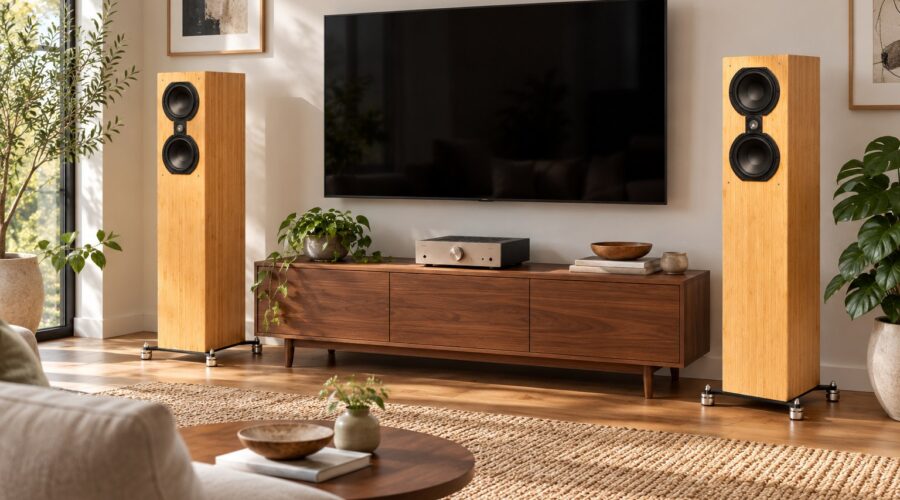
Cover image: concept illustration of a listening space.
You can connect a TV to a stereo system and use the same pair of speakers for music, dialogue and films. The key is matching the television’s audio output to the amplifier’s input. A socket that looks familiar is not enough: its direction, supported format and volume behavior all matter.
Before buying a cable or converter, write down both model numbers and consult their connection diagrams. A straightforward two-channel connection is often all a living-room system needs.
Check the complete signal path
A passive speaker pair needs an amplifier between it and the television. Do not connect passive speakers directly to a TV’s line-level or headphone output. If the amplifier has only analog inputs, a digital TV output will need a compatible digital-to-analog converter, or DAC.
Sketch the path on paper: TV output, any required converter, amplifier input, then speakers. This makes it easier to see which device performs conversion and which controls volume.
Option 1: HDMI ARC or eARC
If both the TV and stereo amplifier support HDMI ARC or eARC, use their specifically marked compatible ports and follow both manuals. An ordinary HDMI input on an amplifier is not automatically an ARC connection.
Enable the relevant TV audio-system settings. HDMI control may allow the TV remote to operate system volume, but behavior depends on the products and settings. Test power, mute and volume rather than assuming all remote functions will work.
Option 2: optical digital audio
Optical is useful when the television has a digital audio output and the amplifier or DAC has a matching input. For a stereo device that cannot decode surround formats, select two-channel PCM in the TV’s digital-audio settings. Sony’s audio-system connection guide explains this format requirement for compatible setups.
An optical connection alone does not carry HDMI control commands. Expect to use the amplifier’s remote unless the equipment provides another supported control method. If there is no sound, confirm the input, cable connection and output format before replacing hardware.
Option 3: analog audio
Some televisions offer a headphone or analog line output. Connect that output to a suitable line input on the amplifier, such as AUX, following the manuals. A phono input is intended for a turntable signal and is generally not suitable for this connection.
Check whether the TV output is fixed or variable. With a variable output, begin at a low level on both devices and establish a comfortable operating range. With a fixed output, use the amplifier to control listening volume.
Test dialogue and synchronization
- Play ordinary speech and confirm that voices sound clear at a comfortable level.
- Check a familiar film and a TV app; source settings can differ.
- Watch lips and listen for a timing mismatch.
- Test mute and volume controls with the remote you intend to use.
- If the TV speakers create an echo, select the appropriate external-audio mode.
If lip sync is wrong, consult the TV and amplifier audio-delay settings. Some systems can add delay but cannot compensate for every direction of mismatch. Sony also publishes audio-delay troubleshooting guidance; menu names vary by model.
Plan the speakers around everyday use
Keep the screen visible, leave the amplifier’s ventilation clear and route cables away from walkways. Check dialogue from the seats your household actually uses. A stereo system creates a central voice between two speakers, so listeners far to one side may hear a different balance.
Explore Sofia 102 speakers, or ask Bache Audio about your room and amplifier. If the system will also play online music, read our guide to adding music streaming.
Do I need a surround receiver?
Not necessarily for two-channel playback. You need equipment that accepts the TV’s output and powers your speakers correctly. Discrete surround playback requires a different system design.